A rainbow for everyone

Traffic lights for everyone

Stephen Westland of Colour chat recently posted about a clever new LED traffic light developed in Japan. Here’s my tweet with the link to Westland’s original blog post:

I really like the idea of making a traffic light that works for everyone: for people with full color vision and people with color vision deficiencies. In fact, I think we should do the same with our color palettes. Why do I say that?

A rainbow for everyone

Take a look at  Figure 1 below. This is a map of the Bouguer Gravity (terrain corrected Bouguer Gravity to be precise)  in Southern Tuscany, colored using a rainbow palette. I intentianally left out the colorbar. For a moment ignore the sharp gradient changes at the yellow and cyan color (that is one of the topics of my upcoming series “The rainbow is dead…long live the rainbow!”). Can you tell which color is representing high values an which low? If you have used a mnemonic like ROY B GIV and can tell that highs are towards the Southwest and lows towards the Northeast, then you are right and you also have full color vision, just like me. Great, because this post is exacly for us, the “normals”.

Figure 1

Take now a look at Figure 2:
Continue reading

What Words Can’t Convey: Illustrations Promote Scientific Understanding

This is a fantastic initiative.

http://www.nsf.gov/news/special_reports/scivis/challenge.jsp

Visualization tips for geoscientists – Matlab

Introduction

In my last post I described how to create a powerful, nondirectional shading for a geophysical surface using the slope of the data to assign the shading intensity (i.e. areas of greater slope are assigned darker shading). Today I will show hot to create a similar effect in Matlab.

Since the data set I use is from my unpublished thesis in Geology, I am not able to share it, and you will have to use your own data, but the Matlab code is simply adapted. The code snippets below assume you have a geophysical surface already imported in the workspace and stored in a variable called “data”, as well as the derivative in a variable called “data_slope”.

Method 1 – with a slope mask and transparency

Some time ago I read this interesting Image Processing blog post by Steve Eddins at Mathworks on overlaying images using transparency. I encourage readers to take a look at this and other posts by Steve, he’s great! That particular blog post gave me the idea to use transparency and the slope to create my favorite shading in Matlab.

In addition to the code below you will need normalise.m from Peter Kovesi‘s website, and to import the color palette cube1.

%% alpha transparency code snippet
black = cat(3, zeros(size(data)), zeros(size(data)), ...
    zeros(size(data)));             % make a truecolor all-black image
gray=black+0.2;                     % make a truecolor all-gray image
alphaI=normalise(data_slope);       % create transparency weight matrix
                                    % using data_slope

imagesc(data);colormap(cube1);      % display data
hold on
h = imagesc(gray);                  % overlay gray image on data
hold off
set(h, 'AlphaData', alphaI);        % set transparency of gray layer using
axis equal;                         % weight matrix
axis tight;
axis off;

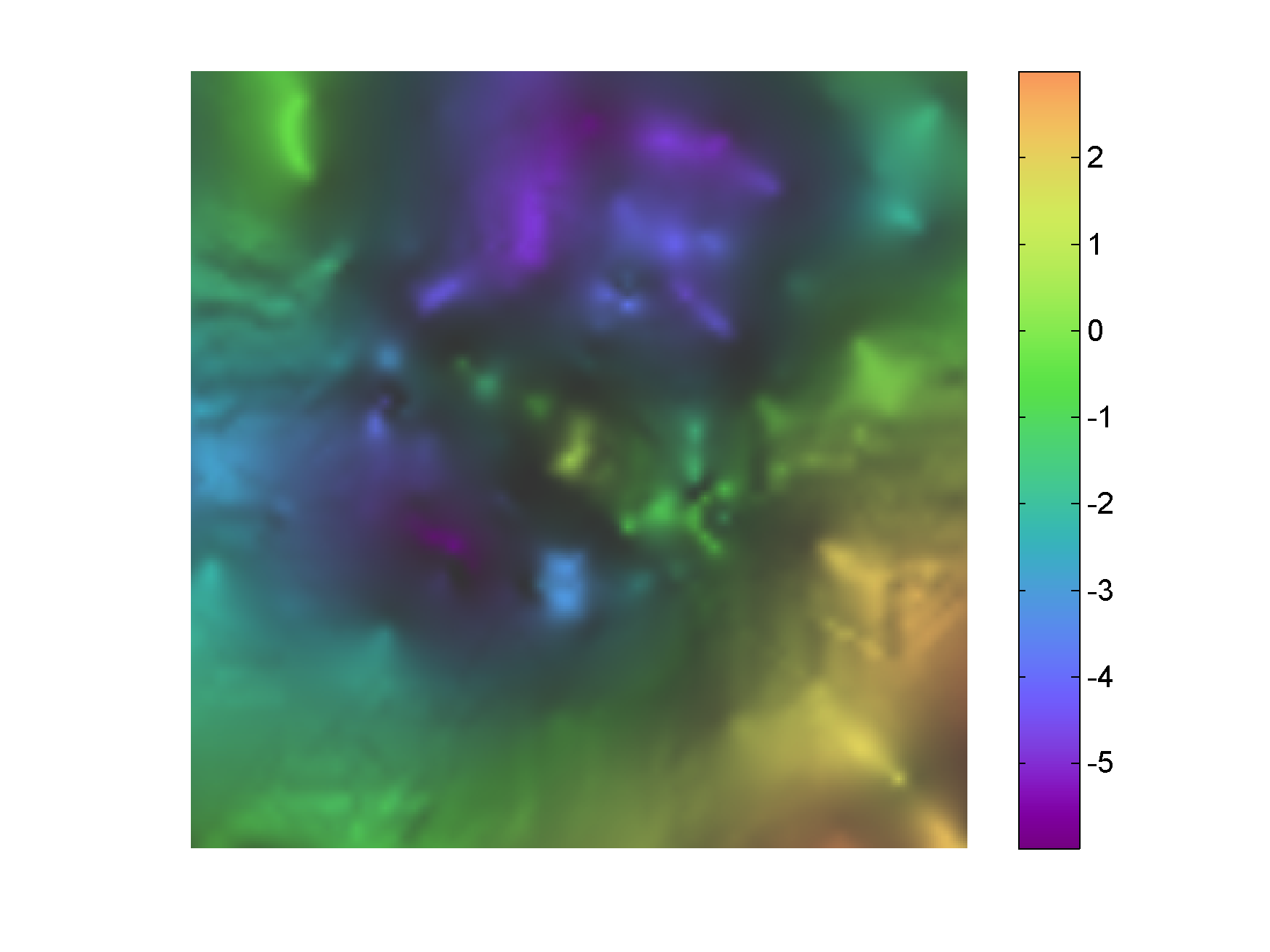
And here is the result in Figure 1 below – not bad!

Figure 1. Shaded using transparency

Continue reading