
Visualization tips for geoscientists: Surfer
Visualization tips for geoscientists: Matlab

Last weekend I had a few hours to play with but needed a short break from writing about color palettes, so I decided to go back and finish up (for now) this series on geoscience visualization in Matlab. In the first post of the series I expanded on work by Steve Eddins at Mathworks on overlaying images using influence maps and demonstrated how it could be used to enhance the display of a single geophysical dataset.
At the end of the second post I promised I would go back and show an example of using transparency and influence maps for other tasks, like overlaying of different attributes. Here’s my favorite example in Figure 1. The image is a map in pastel colors of the Bouguer Gravity anomaly for the Southern Tuscany region of Italy, with three other layers superimposed using the techniques above mentioned.
It is beyond the objectives of this post to discuss at length about gravity exploration methods or to attempt a full interpretation of the map. I will go back to it at a later time as I am planning a full series on gravity exploration using this data set, but if you are burning to read more about gravity interpretation please check these excellent notes by Martin Unsworth, Professor of Physics at the Earth and Atmospheric Sciences department, University of Alberta, and note 4 at the end of this post. Otherwise, and for now, suffice it to say that warm colors (green to yellow to red) in the Bouguer gravity map indicate, relatively speaking, excess mass in the subsurface and blue and purple indicate deficit of mass in the subsurface.
The black and grey lines are lineaments extracted from derivatives of the Bouguer gravity data using two different methods [1]. The semitransparent, white-filled polygons show the location of some of the basement outcrops (the densest rocks in this area).
Lineaments extracted from gravity data can correspond to contacts between geological bodies of different density, so a correlation can be expected between basement outcrops and some of the lineaments, as they are often placed in lateral contact with much lesser dense rocks. This is often exploited in mineral exploration in areas such as this where mineralization occurs at or in the vicinity of this contacts. As an example, I show in Figure 2 the occurrences (AGIP – RIMIN, unpublished industry report, 1989) of silicization (circles) and antimony deposits (triangles), superimposed on the distance from one of the set of lineaments (warm colors indicate higher distance) from Figure 1.
The fact that different methods give systematically shifted results is a known fact, often due the trade-off between resolution and stability, whereby the more stable methods are less affected by noise, but often produce smoother edges over deeper contacts, and their maxima may not correspond. This is in addition to the inherent ambiguity of gravity data, which cannot, by themselves, be interpreted uniquely. To establish which method might be more correct in this case (none is a silver bullet) I tried to calibrate the results using basement outcrops (i.e. does either method more closely match the outcrop edges?). Having done that, I would have more confidence in making inferences on possible other contacts in the subsurface suggested by lineament. I would say the black lines do a better overall job in the East, the gray perhaps in the West. So perhaps I’m stuck? I will get back to this during my gravity series.

Figure 1

Figure 2
As usual I am happy to share the code I used to make the combined map of Figure 1. Since the data I use is in part from my unpublished thesis in Geology and in part from Michele di Filippo at the University of Rome, I am not able to share it, and you will have to use your own data, but the Matlab code is simply adapted. The code snippet below assume you have a geophysical surface already imported in the workspace and stored in a variable called “dataI”, as well as the outcrops in a variable called “basement”, and the lineaments in “lnmnt1” and “lnmnt2”. It also uses my cube1 color palette.
% part 1 - map gravity data
figure; imagesc(XI,YI,dataI); colormap(cube1); hold on;
%
% part 2 - dealing with basement overlay
white=cat(3, ones(size(basement)), ones(size(basement)),...
 ones(size(basement)));
ttt=imagesc(Xb,Yb,white); % plots white layer for basement
%
% part 3 - dealing with lineaments overlays
black=cat(3, zeros(size(lnmnt1)), zeros(size(lnmnt1)),...
 zeros(size(lnmnt1)));
grey=black+0.4;
basement_msk=basement.*0.6;
kkk=imagesc(XI,YI,black); % plots black layer for lineament 1
sss=imagesc(XI,YI,gray); % plots gray layer for lineament 2
hold off
%
% part 4 - set influence maps
set(ttt, 'AlphaData', basement_msk); % influence map for basement
set(kkk, 'AlphaData', lnmnt1); % influence map for linement 1
set(sss, 'AlphaData', lnmnt2); % influence map for linement 2
%
% making it pretty
axis equal
axis tight
axis off
set(gca,'YDir','normal');
set(gcf,'Position',[180 150 950 708]);
set(gcf,'OuterPosition',[176 146 958 790]);
OK, let’s break it down starting from scratch. I want first to create a figure and display the gravity data, then hold it so I can overlay the other layers on top of it. I do this with these two commands:
figure;imagesc(XI,YI,dataI);
hold on;
The layer I want to overlay first is the one showing the basement outcrops. I make a white basement layer covering the full extent of the map, which is shown in Figure 3, below.

Figure 3
I create it and plot it with the commands:
white=cat(3, ones(size(basement)), ones(size(basement)), ones(size(basement)));
ttt=imagesc(Xb,Yb,white);
The handle ttt is to be used in combination with the basement influence map to produce the partly transparent basement overlay: remember that I wanted to display the outcrops in white color, but only partially opaque so the colored gravity map can still be (slightly) seen underneath. I make the influence map, shown in Figure 4, with the command:
basement_msk=basement.*0.6;
Since the original binary variable “basement” had values of 1 for the outcrops and 0 elsewhere, whit the command above I assign an opacity of 0.6 to the outcrops, which will be applied when the next command, below, is run, achieving the desired result.
set(ttt, ‘AlphaData’, basement_msk); % uses basement influence map

Figure 4
For the lineaments I do things in a similar way, except that I want those plotted with full opacity since they are only 1 pixel wide.
As an example I am showing in Figure 5 the black layer lineament 1 and in Figure 6 the influence map, which has values of 1 (full opacity) for the lineament and 0 (full transparency) for everywhere else.

Figure 5

Figure 6
Now a few extra lines to make things pretty, and this is what I get, shown below in Figure 7: not what I expected!

Figure 7
The problem is in these two commands:
white=cat(3, ones(size(basement)), ones(size(basement)), ones(size(basement)));
ttt=imagesc(Xb,Yb,white);
I am calling the layer white but really all I am telling Matlab is to create a layer with maximum intensity (1). But the preceding colormap(cube1) command assigned a salmon-red color to the maximum intensity in the figure, and so that is what you get for the basement overlay.
Again, to get the result I wanted, I had to come up with a trick like in the second post examples. This is the trick:
I create a new color palette with this command:
cube1edit=cube1; cube1edit(256,:)=1;
The new color palette has last RGB triplet actually defined as white, not salmon-red.
Then I replace this line:
figure; imagesc(XI,YI,dataI); colormap(cube1); hold on;
with the new line:
figure; imagesc(XI,YI,dataI, [15 45]); colormap (cube1edit); hold on;
The highest value in dataI is around 43. By spreading the color range from [15 43] to [15 45], therefore exceeding max(dataI) I ensure that white is used for the basement overlay but not in any part of the map where gravity is highest but there is no basement outcrop. In other words, white is assigned in the palette but reserved to the overlay.
Please let me know if that was clear. If it isn’t I will try to describe it better.
[1] One method is the total horizontal derivative. The other method is the hyperbolic tilt angle – using Matlab code by Cooper and Cowan (reference). This is how I produced the two overlays: first I calculated the total horizontal derivative and the tilt angle, then I found the maxima to use as the overlay layers. This is similar to Figure 3e in Cooper and Cowan, but I refined my maxima result by reducing them to 1-pixel-wide lines (using a thinning algorithm).
Cooper, G.R.J., and Cowan, D.R. (2006) – Enhancing potential field data using filters based on the local phase Computers & Geosciences 32 (2006) 1585–1591
Visualization tips for geoscientists: Surfer
Visualization tips for geoscientists: Matlab
In my last post I discussed the two main issues with the rainbow color palette from the point of view of human color vision, and concluded one of these issues is insurmountable.
But before I move to presenting alternative color palettes, let me give you one last example of how bad the rainbow is. It was sent to me by Antony Price, a member of the LinkedIn group Worldwide Geophysicists. Antony created a grayscale and a rainbow-colored version – using the same data range and number of intervals – of the satellite altimeter derived free-air gravity map of the world [1]. I am showing the two maps below.


The rainbow is dead…long live the rainbow! – Part 1
The rainbow is dead…long live the rainbow! – Part 2: a rainbow puzzle
The rainbow is dead…long live the rainbow! – Part 3
The rainbow is dead…long live the rainbow! – Part 4 – CIE Lab heated body
The rainbow is dead…long live the rainbow! – Part 5 – CIE Lab linear L* rainbow
The rainbow is dead series – Part 6 -Comparing color palettes
The rainbow is dead series – Part 7 – Perceptual rainbow palette – the method
The rainbow is dead series – Part 7 – Perceptual rainbow palette – the godies
Matt Hall and Evan Bianco of Agile Geoscience have put together this great new book. I have been fortunate to have my article on colourmaps included as one of the 52 essays in the book. You can order the book directly from Agile’s publishing company Agile Libre:

or you can order it on Amazon. For a look inside it, check here!
In my previous post on this topic I left two loose ends: one in the main text about shading in 3D, and one in the comment section to follow-up on a couple of points in Evan’s feedback. I finally managed to go back and spend some time on those and that is what I am posting about today.
I was trying to write some code to apply the shading with transparency and the surf command. In fact, I’ve been trying, and asking around in the Matlab community for more than one year. But to no avail. I think it is not possible to create the shading directly that way. But I did find a workaround. The breakthrough came when I asked myself this question: can I find a way to capture in a variable the color and the shading associated with each pixel in one of the final 2D maps from the previous post? If I could do that, then it would be possible to assign the colors and shading in that variable using this syntax for the surf command:
surf(data,c);
where data is the gravity matrix and c is the color and shading matrix. To do it in practice I started from a suggestion by Walter Robertson on the Matlab community in his answer to my question on this topic.
The full code to do that is below here, followed by an explanation including 3 figures. As for the other post, since the data set I use is from my unpublished thesis in Geology, I am not able to share it, and you will have to use your own data, but the Matlab code is simply adapted.
%% cell 1
figure;
shadedpcolor(x,y,data,(1-normalise(slope)),[-5.9834 2.9969],[0 1],0.45,cube1,0);
axis equal; axis off; axis tight
shadedcolorbar([-5.9834 2.9969],0.55,cube1);
In cell 1 using again shadedpcolor.m, normalise.m, and cube1 color palette I create the 2D shaded image, which I show here in Figure 1.

Figure 1
Stephen Westland of Colour chat recently posted about a clever new LED traffic light developed in Japan. Here’s my tweet with the link to Westland’s original blog post:
I really like the idea of making a traffic light that works for everyone: for people with full color vision and people with color vision deficiencies. In fact, I think we should do the same with our color palettes. Why do I say that?
Take a look at Figure 1 below. This is a map of the Bouguer Gravity (terrain corrected Bouguer Gravity to be precise) in Southern Tuscany, colored using a rainbow palette. I intentianally left out the colorbar. For a moment ignore the sharp gradient changes at the yellow and cyan color (that is one of the topics of my upcoming series “The rainbow is dead…long live the rainbow!”). Can you tell which color is representing high values an which low? If you have used a mnemonic like ROY B GIV and can tell that highs are towards the Southwest and lows towards the Northeast, then you are right and you also have full color vision, just like me. Great, because this post is exacly for us, the “normals”.

Figure 1
Take now a look at Figure 2:
In my last post I described how to create a powerful, nondirectional shading for a geophysical surface using the slope of the data to assign the shading intensity (i.e. areas of greater slope are assigned darker shading). Today I will show hot to create a similar effect in Matlab.
Since the data set I use is from my unpublished thesis in Geology, I am not able to share it, and you will have to use your own data, but the Matlab code is simply adapted. The code snippets below assume you have a geophysical surface already imported in the workspace and stored in a variable called “data”, as well as the derivative in a variable called “data_slope”.
Some time ago I read this interesting Image Processing blog post by Steve Eddins at Mathworks on overlaying images using transparency. I encourage readers to take a look at this and other posts by Steve, he’s great! That particular blog post gave me the idea to use transparency and the slope to create my favorite shading in Matlab.
In addition to the code below you will need normalise.m from Peter Kovesi‘s website, and to import the color palette cube1.
%% alpha transparency code snippet
black = cat(3, zeros(size(data)), zeros(size(data)), ...
    zeros(size(data)));             % make a truecolor all-black image
gray=black+0.2;                     % make a truecolor all-gray image
alphaI=normalise(data_slope);       % create transparency weight matrix
                                    % using data_slope

imagesc(data);colormap(cube1);      % display data
hold on
h = imagesc(gray);                  % overlay gray image on data
hold off
set(h, 'AlphaData', alphaI);        % set transparency of gray layer using
axis equal;                         % weight matrix
axis tight;
axis off;
And here is the result in Figure 1 below – not bad!
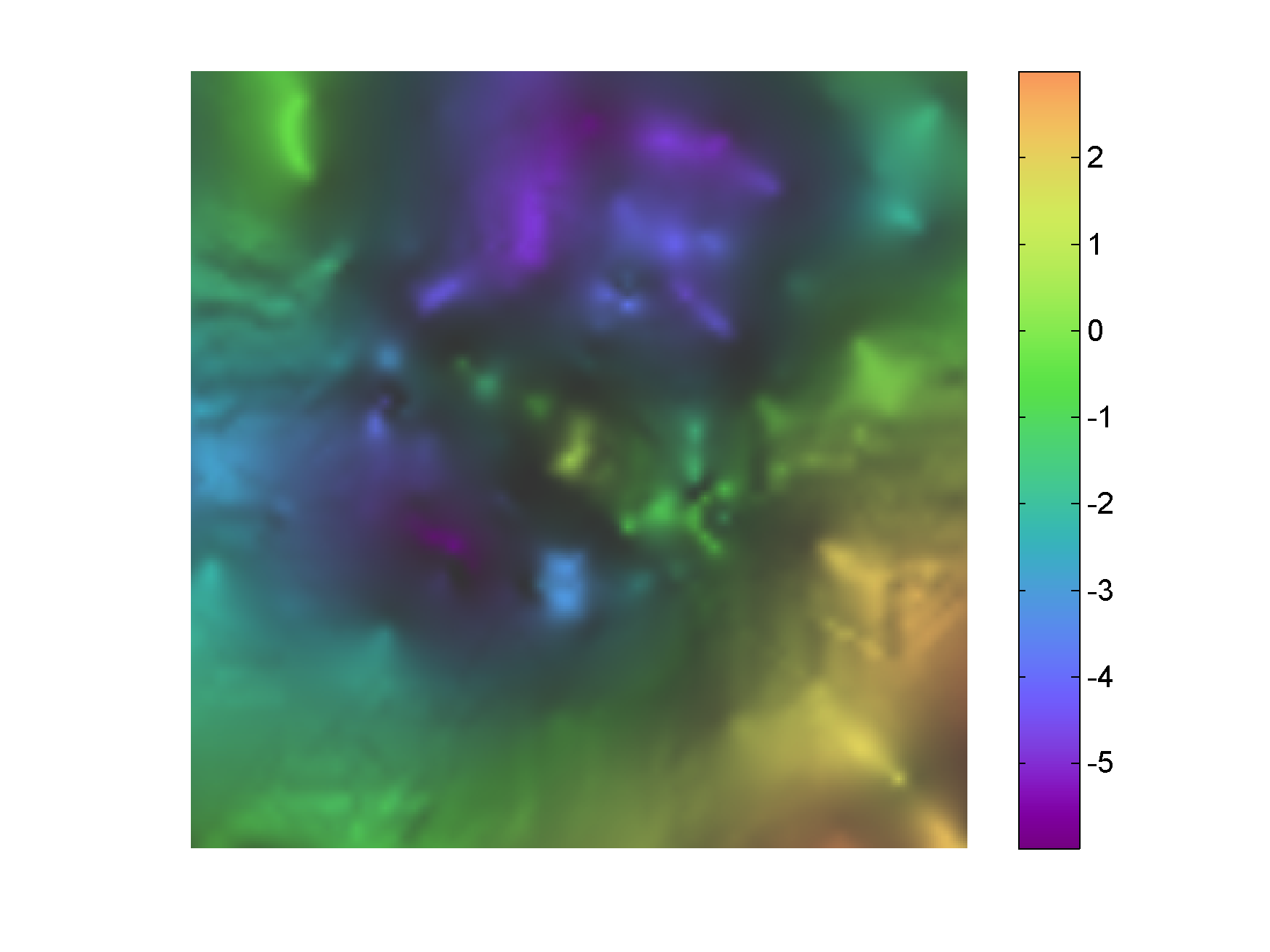
Figure 1. Shaded using transparency


