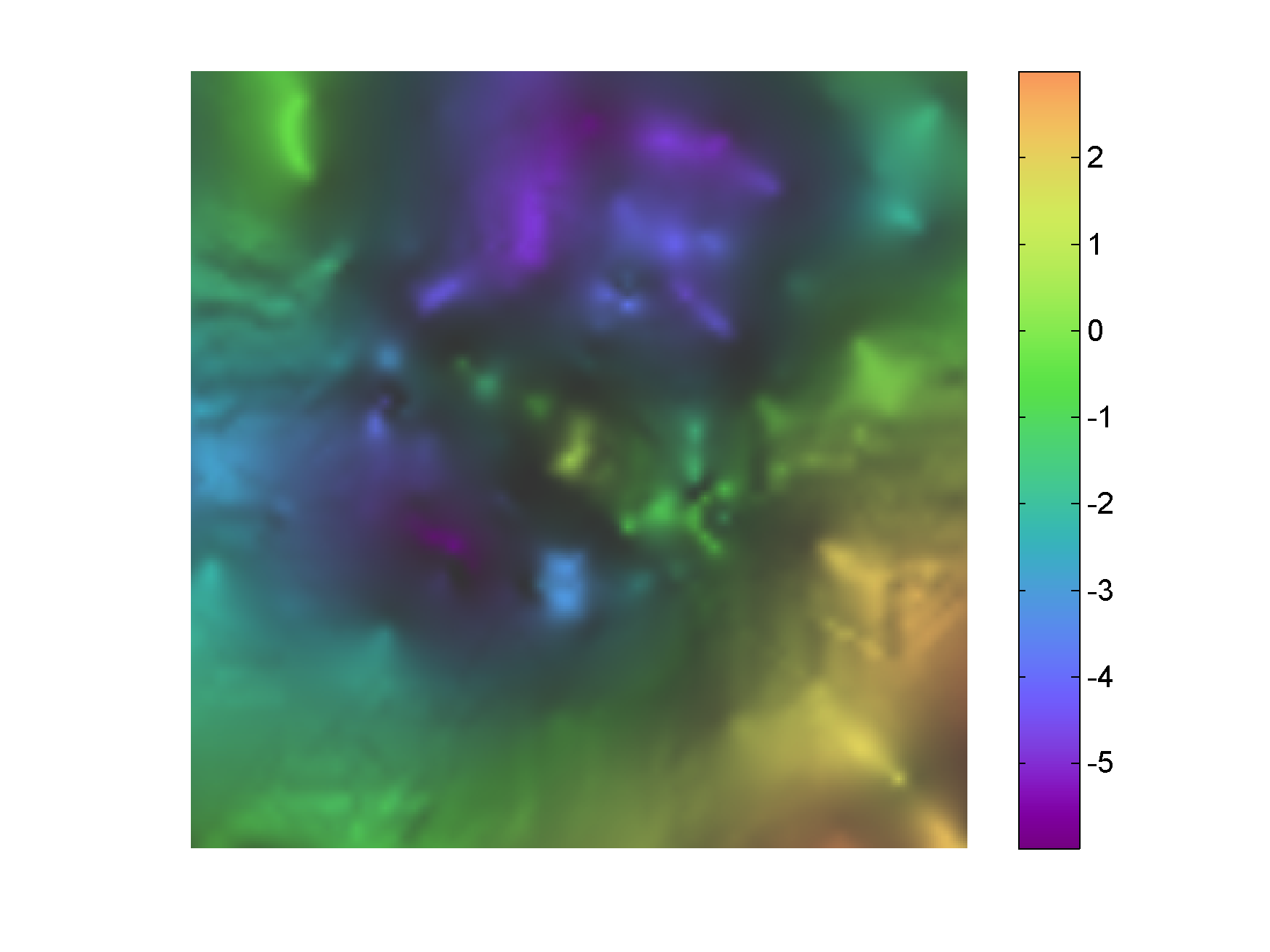
Before starting my series on perceptual color palettes I thought it was worth mentioning an excellent function I found some time ago on the Matlab File Exchange. The function is called Light and Bartlein Color Maps. It was a Matlab Pick of the week, and it can be used to create four color palettes discussed in the EOS paper by Light and Bartlein. Each of these palettes is suited for a specific task, and the authors claim they are non confusing for viewers with color vision deficiencies.
In the remainder of this post I will showcase one of the palettes, called orange-white-purple, as it is good divergent scheme [1]. With the code below I am going to load the World Topography Matlab demo data, create the palette and use it to display the data.
%% load World Topography Matlab demo
load topo;

%% create Light Bartlein orange-white-purple diverging scheme
LB=flipud(lbmap(256,'BrownBlue')); % flip it so blue is for negative(ocean)
                                   % and green for positive (land)

%% plot map
fig2 = figure;
imagesc(flipud(topo));
axis equal
axis tight
axis off
set(fig2,'Position',[720 400 980 580]);
title(' Non-symmetric divergent orange-white-purple palette','Color',...
    'k','FontSize',12,'FontWeight','demi');
colormap(LB);
colorbar;
And here is the result below. I like this color scheme better than many othera for divergent data. One only issue in the figure, although not inherently due to the palette itself [2], is that the centre of the palette is not at the zero. This is a problem since the zero is such an important element in ratio data, in this case representing sea level.
MAKING THE PALETTE SYMMETRIC AROUND THE ZERO
The problem fortunately can be easily fixed by clipping the data limit to a symmetric range. In Matlab this has to be done programmatically, and rather than going about it with trial and error I like to do it automatically with the code below:
In my last post I described how to create a powerful, nondirectional shading for a geophysical surface using the slope of the data to assign the shading intensity (i.e. areas of greater slope are assigned darker shading). Today I will show hot to create a similar effect in Matlab.
Since the data set I use is from my unpublished thesis in Geology, I am not able to share it, and you will have to use your own data, but the Matlab code is simply adapted. The code snippets below assume you have a geophysical surface already imported in the workspace and stored in a variable called “data”, as well as the derivative in a variable called “data_slope”.
Method 1 – with a slope mask and transparency
Some time ago I read this interesting Image Processing blog post by Steve Eddins at Mathworks on overlaying images using transparency. I encourage readers to take a look at this and other posts by Steve, he’s great! That particular blog post gave me the idea to use transparency and the slope to create my favorite shading in Matlab.
In addition to the code below you will need normalise.m from Peter Kovesi‘s website, and to import the color palette cube1.
%% alpha transparency code snippet
black = cat(3, zeros(size(data)), zeros(size(data)), ...
    zeros(size(data)));             % make a truecolor all-black image
gray=black+0.2;                     % make a truecolor all-gray image
alphaI=normalise(data_slope);       % create transparency weight matrix
                                    % using data_slope

imagesc(data);colormap(cube1);      % display data
hold on
h = imagesc(gray);                  % overlay gray image on data
hold off
set(h, 'AlphaData', alphaI);        % set transparency of gray layer using
axis equal;                         % weight matrix
axis tight;
axis off;
And here is the result in Figure 1 below – not bad!
I have been thinking for a while about writing on visualization of geophysical data. I finally got to it, and I am now pleased to show you a technique I use often. This tutorial has shaped up into 2 independent posts: in the first post I will show how to implement the technique with Surfer, in the second one with Matlab (you will need access to a license of Surfer 8.08 or later, and Matlab 2007a or later to replicate the work done in the tutorial).
I will illustrate the technique using gravity data since it is the data I developed it for. In an upcoming series of gravity exploration tutorials I will discuss in depth the acquisition, processing, enhancement, and interpretation of gravity data (see [1] and [4]). For now, suffice it to say that gravity prospecting is useful in areas where rocks with different density are laterally in contact, either stratigraphic or tectonic, producing a measurable local variation of the gravitational field. This was the case for the study area (in the Monti Romani of Southern Tuscany) from my thesis in Geology at the University of Rome [2].
In this part of the Apennine belt, a Paleozoic metamorphic basement (density ~2.7 g/cm3) is overlain by a thick sequence of clastic near-shore units of the Triassic-Oligocene Tuscany Nappe (density ~2.3 g/cm3). The Tuscan Nappe is in turn covered by the Cretaceous-Eocene flish units of the Liguride Complex (density ~2.1 g/cm3).
During the deformation of the Apennines, NE verging compressive thrusts caused doubling of the basement. The tectonic setting was later complicated by tensional block faulting with formation of horst-graben structures generally extend along NW-SE and N-S trends which were further disrupted by later and still active NE-SW normal faulting (see [2], and reference therein, for example [3]).
This complex tectonic history placed the basement in lateral contact with the less dense rocks of the younger formations and this is reflected in the residual anomaly map [4] of Figure 1. Roughly speaking, there is a high in the SE quadrant of ~3.0 mgal corresponding to the location of the largest basement outcrop, an NW-SE elongated high of ~0.5 mgal in the centre bound by lows on both the SW and NE (~-6.0 and ~-5.0 mgal, respectively), and finally a local high in the N.W. quadrant of ~-0.5 mGal. From this we can infer that in this area can infer that the systems of normal faults caused differential sinking of the top of basement in different blocks leaving an isolated high in the middle, which is consistent with the described tectonic history [2]. Notice that grayscale representation is smoothly varying, reflecting (and honoring) the structure inherent in the data. It does not allow good visual discrimination and comparison of differences, but from the interpretation standpoint I recommend to always start out with it: once a first impression is formed it is difficult to go back. There is time later to start changing the dispaly.
Figure 1 – Grayscale residual anomalies in milligals. This version of the map was generate using the IMAGE MAP option in Surfer.
OK, now that we formed a first impression, what can we try to improve on this display? The first thing we can do to increase the perceptual contrast is to add color, as I have done in Figure 2. This is an improvement, now we are able to appreciate smaller changes, quickly assess differences, or conversely identify areas of similar anomaly. Adding the third dimension and perspective is a further improvement, as seen in figure 3. But there’s still something missing. Even though we’ve added color, relief, and perspective, the map looks a bit “flat”.
Figure 2 – Colored residual anomalies in milligals. This version of the map was generate using the IMAGE MAP option in Surfer.
Figure 3 – Colored 3D residual anomaly map in milligals. This version of the map was generate using the SURFACE MAP option in Surfer.
Adding contours is a good option to further bring out details in the data, and I like the flexibility of contours in Surfer. For example, for Figure 4 I assigned (in Contour Properties, Levels tab) a dashed line style to negative residual contours, and a solid line style to positive residual contours, with a thicker line for the zero contour. This can be done by modifying the style for each level individually, or by creating two separate contours, one for the positive data, one for the negative data, which is handy when several contour levels are present. The one drawback of using contours this way is that it is redundant. We used 3 weapons – color, relief, and contours – to dispaly one dataset, and to characterize just one property, the shape of gravity anomaly. In geoscience it is often necessary, and desireable to show multiple (relevant) datasets in one view, so this is a bit of a waste. I would rather spare the contours, for example, to overlay and compare anomalous concentrations in gold pathfinder elements on this gravity anomaly map (one of the objectives of the study, being the Monti Romani an area of active gold exploration).
Figure 4 – Colored 3D residual anomaly map in milligals. Contours were added with the the CONTOUR MAP option in Surfer.Figure 5 – Colored 3D residual anomaly map in milligals with lighting (3D Surface Properties menu). Illumination is generated by a point source with -135 deg azimuth and 60 deg elevation, plus an additional 80% gray ambient light, a 30% gray diffuse light, and a 10% gray specular light.
The alternative to contours is the use of illumination, or lighting, which I used in Figure 5. Lighting is doing a really good job: now we can recognize there is a high frequency texture in the data and we see some features both in the highs and lows. But there’s a catch: we are now introducing perceptual artifacts, in the form of bright white highlight, which is obscuring some of the details where the surface is orthogonal to the point source light.
There is a way to illuminate the surface without introducing artifact – and that is really wanted to show you with this tutorial – which is to use a derivative of the data to assign the shading intensity (areas of greater gradient were assigned darker shading) [5]. In this case I choose the terrain slope, which is the slope in the direction of steepest gradient at any point in the data (calculated in a running window). The result is a very powerful shading. Here is how you can do it in Surfer:
1) CREATE TERRAIN SLOPE GRID (let’s call this A): go to GRID > CALCULUS > TERRAIN SLOPE
Result is shown in Figure 6 below:
Figure 6 – Terrain slope of residual anomaly. Black for low gradients, white for high gradients. Displayed using IMAGE MAP option.
2) CREATE COMPLEMENT OF TERRAIN SLOPE AND NORMALIZE TO [1 0] RANGE (to assign darker shading to areas of greater slope. This is done with 3 operations:
i) GRID > MATH> B=A – min(A)
where min(A) is the minimum value, which you can read off the grid info (for example you would double click on the map above to open the Map Properties and there’s an info button next to the Input File field) .
ii) GRID > MATH> C=B /max(B)
iii) GRID > MATH> D= 1-C
Result is shown in Figure 7 below. This looks really good, see how now the data seems almost 3D? It would work very well just as it is. However, I do like color, so I added it back in Figure 8. This is done by draping the grayscale terrain slope complement IMAGE MAP as an overlay over the colored residual anomaly SURFACE MAP, and setting the Color Modulation to BLEND in the 3D Surface Properties in the Overlay tab. I really do like this display in Figure 8, I think it is terrific. Let me know if you like it best too.
Finally, in Figure 9, I added a contour of the anomaly in the Gold Pathfiners, to reiterate the point I made above that contours are best spared for a second dataset.
In my next post I will show you how to do all of the above programmatically in Matlab (and share the code). Meanwhile, comments, suggestions, requests are welcome. Have fun mapping and visualizing!
Figure 7 – Complement of the terrain slope. White for low gradients, black for high gradients. Displayed using IMAGE MAP option.Figure 8 – Complement of the terrain slope with color added back. Figure 9 – Complement of the terrain slope with color added back and contour overlay of gold pathfinders in stream sediments.
GOODIES
Did you lie the colormap? In future series on perceptually balanced colormaps I will tell you how I created it. For now, if you’d like to try it on your data you can download it here:
Cube1_Surfer – this is preformatted for Surfer with 100 RGB triplets and header line. Dowload the .doc file, open and save as plain text, then change extension to .clr;
Cube1_Surfer_inverse – the ability to flip color palette is not implemented in Surfer (at least not in version 8) so I am including the flipped version of above. Again, dowload the .doc file, open and save as plain text, then change extension to .clr.
I would like to thank Michele di Filippo at the Department of Earth Science, University of Rome La Sapienza, to whom I owe a great deal. Michele, my first mentor and a friend, taught me everything I know about the planning and implementation of a geophysical field campaign. In the process I also learned from him a great deal about geology, mapping, Surfer, and problem solving. Michele will make a contribution to the gravity exploration series.
NOTES
[1] If you would like to learn more about gravity data interpretation please check these excellent notes by Martin Unsworth Unsworth, Professor of Physics at the Earth and Atmospheric Sciences department, University of Alberta.
[2] Niccoli, M., 2000: Gravity, magnetic, and geologic exploration in the Monti Romani of Southern Tuscany, unpublished field and research thesis, Department of Earth Science, University of Rome La Sapienza.
[3] Moretti A., Meletti C., Ottria G. (1990) – Studio stratigrafico e strutturale dei Monti Romani (GR-VT) – 1: dal Paleozoico all’Orogenesi Alpidica. Boll. Soc. Geol. It., 109, 557-581. In Italian.
[4] Typically reduction of the raw data is necessary before any interpretation can be attempted. The result of this process of reduction is a Bouguer anomaly map, which is conceptually equivalent to what we would measure if we stripped away everything above sea level, therefore observing the distribution of rock densities below a regular surface. It is standard practice to also detrend the Bouguer anomaly to separate the influence of basin or crustal scale effects, from local effects, as either one or the other is often the target of the survey. The result of this procedure is typically called Residuals anomaly and often shows subtler details that were not apparent due to the regional gradients. Reduction to rsiduals makes it easier to qualitatively separate mass excesses from mass deficits. For a more detailed review of gravity exploration method check again the notes in [1] and refer to this article on the CSEG Recorder and reference therein.
[5] Speaking in general, 3D maps without lighting often have a flat appearance, which is why light sources are added. The traditional choice is to use single or multiple directional light sources, but the result is that only linear features orthogonal to those orientations will be highlighted. This is useful when interpreting for lineaments or faults (when present), but not in all circumstances, and requires a lot of experimenting. in other cases, like this one , directional lighting introduces a bright highlight, which obscures some detail. A more generalist, and in my view more effective alternative, is to use information derived from the data itself for the shading. One way to do that is to use a high pass filtered version of the data. i will show you how to do that in matlab in the next tutorial. Another solution, which I favored in this example, is to use a first derivative of the data.
In a previous post I used an x-ray of my left hand to showcase some basic image visualization techniques in Matlab.
If you are interested in learning image processing and analysis on your own (just like I did) but are not too interested in the programming side of things or would rather find a noncommercial alternative I’d recommend ImageJ. I just stumbled into it a few weeks ago and was immediately drawn to it.
ImageJ is a completely free, open source, Java-based image processing environment. It allows users to display, edit, analyze, process, and filter images, and its capabilities are greatly increased by hundreds of plugins on the official webpage and elsewhere.
It is used extensively by biomedical and medical image processing professionals (check this fantastic tutorial by the Montpellier RIO imaging lab), but is popular in many fields, from A-stronomy (you can read a brief review in here) to Z-oology (check this site).
I decided to give it a try right away. Within an hour of installing it on my iMac I had added the Interactive 3D SurfacePlot plugin, loaded the hand x-ray image, displayed it and adjusted the z scale, smoothing, lighting, and intensity thresholds to what (preliminarily) seemed optimal.
For each discrete adjustment I saved a screen capture, then I reimported as an image sequence in ImageJ and easily saved the sequence as an AVI movie, which is here below. I’m hoping this will give you a sense of how I iteratively converged to a good result.
In my last post I illustrated some simple techniques to enhance and visualize a hand x-ray image. I showed how to use intensity values as if they were elevation to display the hand in pseudo-relief. I did this in 2 ways using the Matlab command surf: once keeping the elevation range of [0-255] obtained from intensity, and a second time creating a different elevation range (through trial and error) to try to further enhance the relief effect. In the case of the hand x-ray the relief was indeed enhanced but with that also unimportant details that are distracting possibly from the task (for the hypothetical specialist commissioning our image enhancement work) of interpreting the x-ray. Today I want to show you a case in which it would be useful to enhance dramatically the smaller details in an image. Below is a beautiful coin of the Roman Emperor Augustus I found here.
This is a PA ulnar deviation x-ray of my left wrist from last month, which gives a good view of the scaphoid bone from above.
The bone is chipped in the area pointed by the arrow, due to a fall that occurred 20 or so years ago. Somewhere in there, there’s also a tiny detached fragment of cartilage that calcified (as seen in a CT scan at the time). I was lucky, because typically the result of a fall with outstretched hand for people aged 17-40 is the scaphoid fracture, which are known to have unpredictable healing. Lately, however, due to a tendonitis, the fragment too is acting out. I’m left handed so this is causing some trouble, and that’s why the recent x-rays.