In my last post I discussed the two main issues with the rainbow color palette from the point of view of human color vision, and concluded one of these issues is insurmountable.
But before I move to presenting alternative color palettes, let me give you one last example of how bad the rainbow is. It was sent to me by Antony Price, a member of the LinkedIn group Worldwide Geophysicists. Antony created a grayscale and a rainbow-colored version – using the same data range and number of intervals – of the satellite altimeter derived free-air gravity map of the world [1]. I am showing the two maps below.
Following the first post in this series, Steve commented:
Matteo, so would I be correct in assuming that the false structures that we see in the rainbow palette are caused by inflection points in the brightness? I always assumed that the lineations we pick out are caused by our flawed color perception but it looks from your examples that they are occurring where brightness changes slope. Interesting.
As I mention in my brief reply to the reader’s comment, I’ve done some reading and more experiments to try to understand better the reasons behind the artifacts in the rainbow, and I am happy to share my conclusions. This is also a perfect lead into the rest of the series.
Human vision vs. the rainbow – issue number 1
I think there are two issues that make us see the rainbow the way we see it; they are connected but more easily examined separately. The first one is that we humans perceive some colors as lighter (for example green) and some as darker (for example blue) at a given light level, which is because of the difference in the fundamental color response of the human eye for red, green, and blue (the curves describing the responses are called discrimination curves).
There is a well written explanation for the phenomenon on this website (and you can find here color matching functions similar to those used there to create the diagram). The difference in the sensitivity of our cones explains why in the ROYGBIV color palette (from the second post in this series) the violet and blue appear to us darker than red, and red in turn darker than green and yellow. The principle … applies also to mixes involving the various cones (colours), hence the natural brightness of yellow which stimulates the two most reactive sets of cones in the eye. We could call this a flaw in color perception (I am not certain of what the evolutionary advantage might be), which is responsible for the erratic appearance of the lightness (L*) plot for the palette shown below (If you would like to know more about this plot and get the code to make it to evaluate color palettes, please read the first post in this series).
So to answer Steve, I think yes, the lineations we pick in the rainbow are caused by inflection points in the lightness profile, but those in turn are caused by the differences in color responses of our cones. But there’s more!
If you are interested in the topic of color palettes for scientific data, and the rainbow in particular, I would say you ought to read this 2007 IEEE visualization paper by Borland and Taylor: Rainbow Color Map (Still) Considered Harmful. It clearly and elegantly illustrates why the rainbow palette should be avoided when displaying scientific data. I like Figure 1 in the paper in particular. The illustration shows how it is easy to order perceptually a set of 4 paint chips of different gray intensity, but not at all easy to order 4 paint chips colored red, green, yellow, and blue. The author’s argument is that the rainbow colors are certainly ordered, from shorter to longer wavelengths, but they are not perceptually ordered. In this post I wanted to extend the chips example to all 7 colors in the rainbow and try to demonstrate the point in a quantitative way.
Here below is a 256-sample rainbow palette I created interpolating between the RGB values for the seven colors of the rainbow red, orange, yellow, green, blue, indigo, and violet (ROY G BIV):
On this palette I see a number of perceptual artifacts, the most notable ones being a sharp edge at the yellow and a flat zone at the green. The existence of these edges I tried to explain quantitatively in the first post of this series.
Now, to go back to the experiment, from the original RGB values for the non interpolated colors I created the 7 color chips below . Question: can you order them based on their perceived intensity?
I think if you have full color vision (more on the topic of rainbow and impaired color vision in the next section of this post) eventually you will be able to order them as I did.If not, try now below. In this new image I converted the color chips to gray chips using the values obtained in Matlab with this formula:
Give it a try, then hover with your mouse over the image to read the intensity values.
Not surprisingly, the values are not in any particular order. This reinforces the notion that although the rainbow colors are ordered by increasing wavelength (or decreasing in this case) , they are not perceptually ordered. (See this comment to my previous post). Below I rearranged the gray chips by increasing intensity.
And now I reconverted from gray to RGB colors and adjusted the distance between each pair of chips so that it is proportional to the intensity difference between the chips in the pair (I actually had to artificially change the value for green and orange so they would not overlap). That was an epiphany for me. And the name is funny too, BIV R GOY, or YOG R VIB…
I said that it was an epiphany because I realize the implications of trying to create a palette by interpolating through these colors with those distances. So I did it, and I am showing it below in the top color palette. We jumped out of the frying pan, into the fire! We went from perceptual artifacts that are inherent to the rainbow (reproduced in reverse order from blue to red to facilitate comparison as the bottom palette) to interpolation artifacts in the intensity ordered rainbow. Hopeless!
ROYGBIV puzzle
As if what I have shown in the previous section wasn’t scary enough, I took 7 squares and colored them using the same RGB values for Red, Orange, Yellow, Green, Blue, Indigo, and Violet. Then I used the Dichromacy plug-in in ImageJ to simulate how these colors would be seen by a viewer with Deuteranopia (the more common form of color vision deficiency). I then shuffled the squares in random order on a square canvas, and numbered them 1-7 in clockwise order.
Puzzle: can you pair the squares numbered 1 through 7 with the colors R though V? I will give away the obvious one, which is the yellow:
1=Y
2=?
3=?
4=?
5=?
6=?
7=?
Cannot do it? For the solution just hover over the image with your mouse. If you like the animation and would like to use it on your blog, twitter, Facebook, get the GIF file version here. Please be kind enough to link it back to this post.
Conclusion
When I tried myself I could not solve the puzzle, and that finally convinced me that trying to fix the rainbow was a hopeless cause. Even if we could, it would still confuse a good number of people (about 8% of male have one form or the other of color vision deficiency). From the next post on I will show what I got when I tried to create a better, more perceptual rainbow from scratch.
This is the first post in a series on the rainbow and similar color palettes. My goal is to demonstrate it is not a good idea to use these palettes to display scientific data, and then answer these two questions: (1) is there anything we can do to “fix” the rainbow, and (2) if not, can we design a new one from scratch.
The rainbow is dead…some examples
In a previous post I showed a pseudo-3D rendering of my left hand x-ray using intensity (which is a measure of bone thickness) as the elevation. I mapped the rendering to both grayscale and rainbow color palettes, and here I reproduced the two images side by side:
I used this example to argue (briefly) that the rainbow obscures some details and confuses images by introducing artifacts. Notice that in this case it clearly reduces the effectiveness of the pseudo-3D rendering in general. It also introduces inversions in the perception of elevation. The thick part in the head of the radius bone, indicated by the arrow, looks like a depression, whereas it is clearly (and correctly) a high in the grayscale version.
In my previous post on this topic I left two loose ends: one in the main text about shading in 3D, and one in the comment section to follow-up on a couple of points in Evan’s feedback. I finally managed to go back and spend some time on those and that is what I am posting about today.
Part 1 – apply shading with transparency in 3D with the surf command
I was trying to write some code to apply the shading with transparency and the surf command. In fact, I’ve been trying, and asking around in the Matlab community for more than one year. But to no avail. I think it is not possible to create the shading directly that way. But I did find a workaround. The breakthrough came when I asked myself this question: can I find a way to capture in a variable the color and the shading associated with each pixel in one of the final 2D maps from the previous post? If I could do that, then it would be possible to assign the colors and shading in that variable using this syntax for the surf command:
surf(data,c);
where data is the gravity matrix and c is the color and shading matrix. To do it in practice I started from a suggestion by Walter Robertson on the Matlab community in his answer to my question on this topic.
The full code to do that is below here, followed by an explanation including 3 figures. As for the other post, since the data set I use is from my unpublished thesis in Geology, I am not able to share it, and you will have to use your own data, but the Matlab code is simply adapted.
Before starting my series on perceptual color palettes I thought it was worth mentioning an excellent function I found some time ago on the Matlab File Exchange. The function is called Light and Bartlein Color Maps. It was a Matlab Pick of the week, and it can be used to create four color palettes discussed in the EOS paper by Light and Bartlein. Each of these palettes is suited for a specific task, and the authors claim they are non confusing for viewers with color vision deficiencies.
In the remainder of this post I will showcase one of the palettes, called orange-white-purple, as it is good divergent scheme [1]. With the code below I am going to load the World Topography Matlab demo data, create the palette and use it to display the data.
%% load World Topography Matlab demo
load topo;

%% create Light Bartlein orange-white-purple diverging scheme
LB=flipud(lbmap(256,'BrownBlue')); % flip it so blue is for negative(ocean)
                                   % and green for positive (land)

%% plot map
fig2 = figure;
imagesc(flipud(topo));
axis equal
axis tight
axis off
set(fig2,'Position',[720 400 980 580]);
title(' Non-symmetric divergent orange-white-purple palette','Color',...
    'k','FontSize',12,'FontWeight','demi');
colormap(LB);
colorbar;
And here is the result below. I like this color scheme better than many othera for divergent data. One only issue in the figure, although not inherently due to the palette itself [2], is that the centre of the palette is not at the zero. This is a problem since the zero is such an important element in ratio data, in this case representing sea level.
MAKING THE PALETTE SYMMETRIC AROUND THE ZERO
The problem fortunately can be easily fixed by clipping the data limit to a symmetric range. In Matlab this has to be done programmatically, and rather than going about it with trial and error I like to do it automatically with the code below:
In my last post I described how to create a powerful, nondirectional shading for a geophysical surface using the slope of the data to assign the shading intensity (i.e. areas of greater slope are assigned darker shading). Today I will show hot to create a similar effect in Matlab.
Since the data set I use is from my unpublished thesis in Geology, I am not able to share it, and you will have to use your own data, but the Matlab code is simply adapted. The code snippets below assume you have a geophysical surface already imported in the workspace and stored in a variable called “data”, as well as the derivative in a variable called “data_slope”.
Method 1 – with a slope mask and transparency
Some time ago I read this interesting Image Processing blog post by Steve Eddins at Mathworks on overlaying images using transparency. I encourage readers to take a look at this and other posts by Steve, he’s great! That particular blog post gave me the idea to use transparency and the slope to create my favorite shading in Matlab.
In addition to the code below you will need normalise.m from Peter Kovesi‘s website, and to import the color palette cube1.
%% alpha transparency code snippet
black = cat(3, zeros(size(data)), zeros(size(data)), ...
    zeros(size(data)));             % make a truecolor all-black image
gray=black+0.2;                     % make a truecolor all-gray image
alphaI=normalise(data_slope);       % create transparency weight matrix
                                    % using data_slope

imagesc(data);colormap(cube1);      % display data
hold on
h = imagesc(gray);                  % overlay gray image on data
hold off
set(h, 'AlphaData', alphaI);        % set transparency of gray layer using
axis equal;                         % weight matrix
axis tight;
axis off;
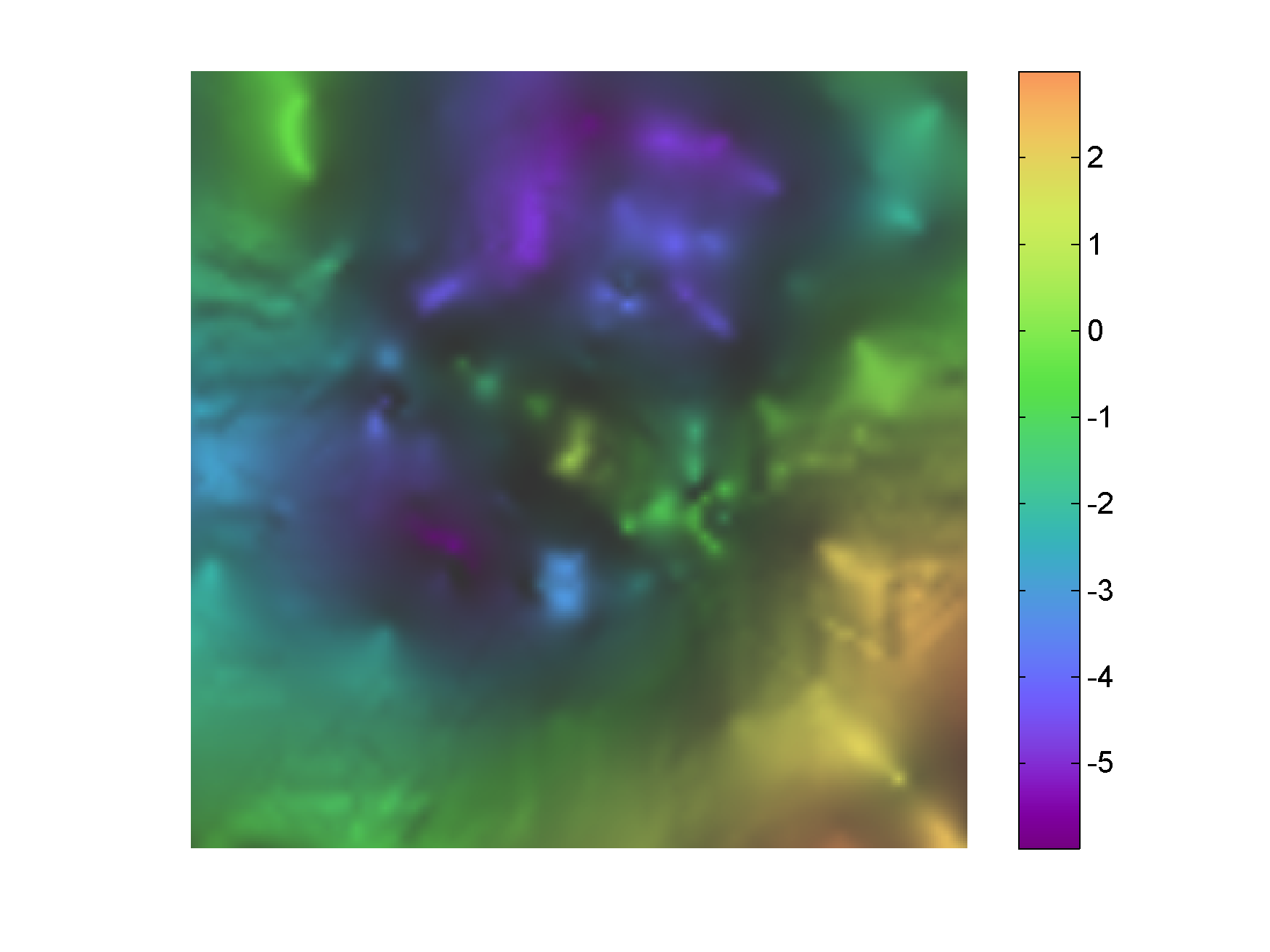
And here is the result in Figure 1 below – not bad!