The rainbow is dead…long live the rainbow! – series outline

The rainbow is dead…long live the rainbow! – Part 1

The rainbow is dead…long live the rainbow! – Part 2: a rainbow puzzle

The rainbow is dead…long live the rainbow! – Part 3

The rainbow is dead…long live the rainbow! – Part 4 – CIE Lab heated body

The rainbow is dead…long live the rainbow! – Part 5 – CIE Lab linear L* rainbow

The rainbow is dead series – Part 6 -Comparing color palettes

The rainbow is dead series – Part 7 – Perceptual rainbow palette – the method

The rainbow is dead series – Part 7 – Perceptual rainbow palette – the godies

Color Use Guidelines for Mapping and Visualization

I find the Color Use Guidelines by Cynthia Brewer (of Color Brewer fame) very well done and extremely useful. Below is a screen captures of the main page. To see an explanation of and example for each color scheme visit the interactive guidelines.

colour maps

The perfect lead into my series on perceptual color palettes. Great post!

The original article on the Guardian is here. And here is the conversation that lead to improved map, as put together on Storify.

I thought it’d be interesting to run a simulation of what the map would actually look lie to viewers with the 3 types of color deficient vision. Below are my results for the first map. It is obvious from this simulation that while the map is OK for Tritanope viewers, the green and red areas are very confusing for Protanope and Deuteranope viewers.

Continue reading

Visualization tips for geoscientists: Matlab, part II

Introduction

In my previous post on this topic I left two loose ends: one in the main text about shading in 3D, and one in the comment section to follow-up on a couple of points in Evan’s feedback. I finally managed to go back and spend some time on those and that is what I am posting about today.

Part 1 – apply shading with transparency in 3D with the surf command

I was trying to write some code to apply the shading with transparency and the surf command. In fact, I’ve been trying, and asking around in the Matlab community for more than one year. But to no avail. I think it is not possible to create the shading directly that way. But I did find a workaround. The breakthrough came when I asked myself this question: can I find a way to capture in a variable the color and the shading associated with each pixel in one of the final 2D maps from the previous post? If I could do that, then it would be possible to assign the colors and shading in that variable using this syntax for the surf command:

surf(data,c);

where data is the gravity matrix and c is the color and shading matrix. To do it in practice I started from a suggestion by Walter Robertson on the Matlab community in his answer to my question on this topic.

The full code to do that is below here, followed by an explanation including 3 figures. As for the other post, since the data set I use is from my unpublished thesis in Geology, I am not able to share it, and you will have to use your own data, but the Matlab code is simply adapted.

%% cell 1
figure;
shadedpcolor(x,y,data,(1-normalise(slope)),[-5.9834 2.9969],[0 1],0.45,cube1,0);
axis equal; axis off; axis tight
shadedcolorbar([-5.9834 2.9969],0.55,cube1);

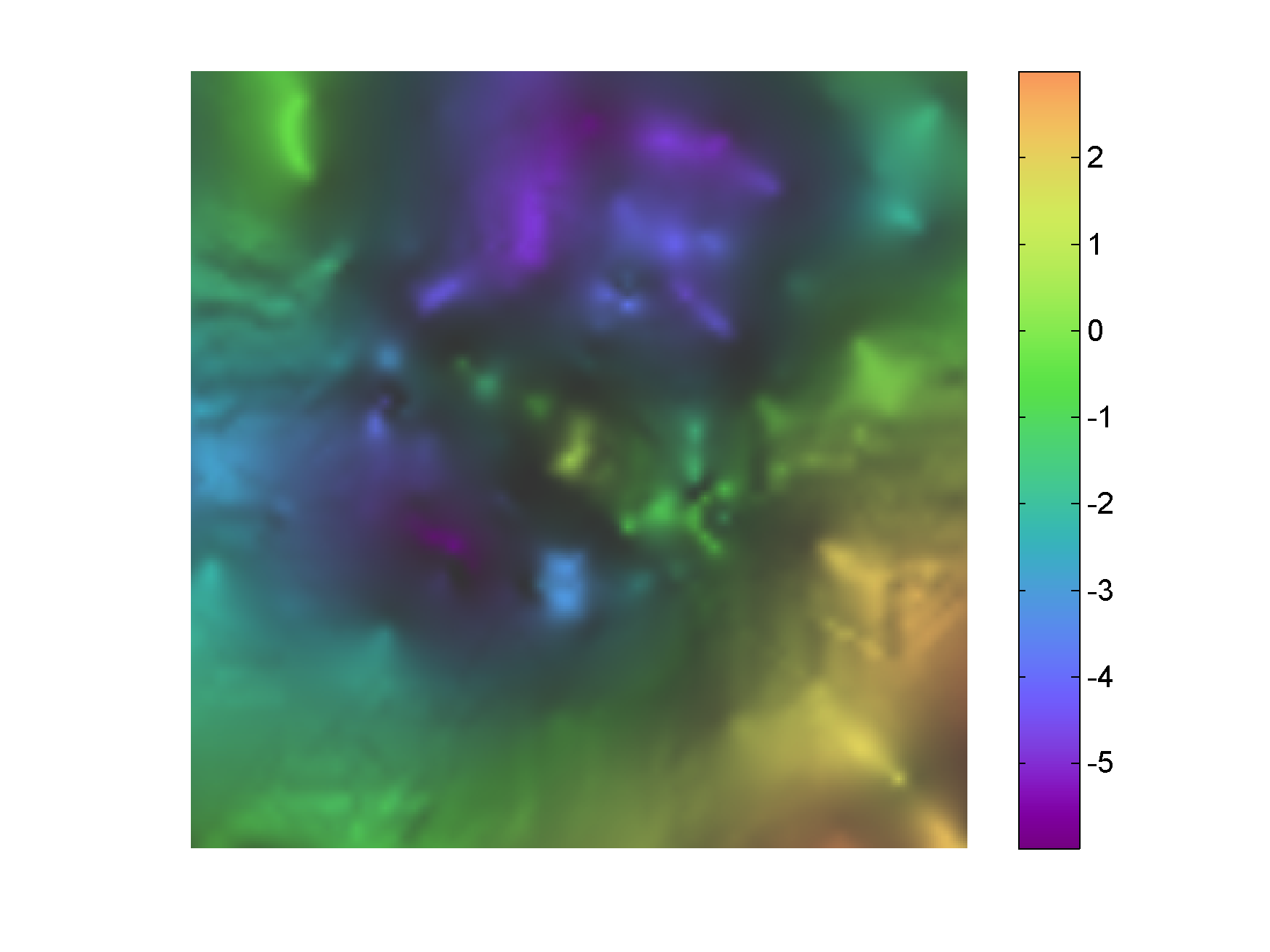
In cell 1 using again shadedpcolor.mnormalise.m, and cube1 color palette I create the 2D shaded image, which I show here in Figure 1.

Figure 1


Continue reading

A rainbow for everyone

Traffic lights for everyone

Stephen Westland of Colour chat recently posted about a clever new LED traffic light developed in Japan. Here’s my tweet with the link to Westland’s original blog post:

I really like the idea of making a traffic light that works for everyone: for people with full color vision and people with color vision deficiencies. In fact, I think we should do the same with our color palettes. Why do I say that?

A rainbow for everyone

Take a look at  Figure 1 below. This is a map of the Bouguer Gravity (terrain corrected Bouguer Gravity to be precise)  in Southern Tuscany, colored using a rainbow palette. I intentianally left out the colorbar. For a moment ignore the sharp gradient changes at the yellow and cyan color (that is one of the topics of my upcoming series “The rainbow is dead…long live the rainbow!”). Can you tell which color is representing high values an which low? If you have used a mnemonic like ROY B GIV and can tell that highs are towards the Southwest and lows towards the Northeast, then you are right and you also have full color vision, just like me. Great, because this post is exacly for us, the “normals”.

Figure 1

Take now a look at Figure 2:

Continue reading

Visualization tips for geoscientists – Matlab

Introduction

In my last post I described how to create a powerful, nondirectional shading for a geophysical surface using the slope of the data to assign the shading intensity (i.e. areas of greater slope are assigned darker shading). Today I will show hot to create a similar effect in Matlab.

Since the data set I use is from my unpublished thesis in Geology, I am not able to share it, and you will have to use your own data, but the Matlab code is simply adapted. The code snippets below assume you have a geophysical surface already imported in the workspace and stored in a variable called “data”, as well as the derivative in a variable called “data_slope”.

Method 1 – with a slope mask and transparency

Some time ago I read this interesting Image Processing blog post by Steve Eddins at Mathworks on overlaying images using transparency. I encourage readers to take a look at this and other posts by Steve, he’s great! That particular blog post gave me the idea to use transparency and the slope to create my favorite shading in Matlab.

In addition to the code below you will need normalise.m from Peter Kovesi‘s website, and to import the color palette cube1.

%% alpha transparency code snippet
black = cat(3, zeros(size(data)), zeros(size(data)), ...
    zeros(size(data)));             % make a truecolor all-black image
gray=black+0.2;                     % make a truecolor all-gray image
alphaI=normalise(data_slope);       % create transparency weight matrix
                                    % using data_slope

imagesc(data);colormap(cube1);      % display data
hold on
h = imagesc(gray);                  % overlay gray image on data
hold off
set(h, 'AlphaData', alphaI);        % set transparency of gray layer using
axis equal;                         % weight matrix
axis tight;
axis off;

And here is the result in Figure 1 below – not bad!

Figure 1. Shaded using transparency

Continue reading

Compare lists from text files using Matlab – an application for resource exploration

INTRODUCTION

With today’s post I would like to share a Matlab script I used often to compare lists of ID numbers stored in separate text files. The ID numbers can be of anything: oil and gas wells, mining diamond drill hole locations, gravity or resistivity measurement stations, outcrop locations, you name it. And the script will handle any combination of ASCII characters (numbers, letters, etcetera).

I included below here some test files for you to try with the code, which is in the next section. Please refer to the comment section in the code for usage and file description. Have fun, and if you try it on your lists, let me know how it works for you.

TEST FILES

These files are in doc format; they need to be downloaded and saved as plain txt files. Test1 and Test2 contain 2 short lists of (fake) Canadian Oil and Gas wells; the former is the result of a search using a criterion (wells inside a polygonal area), the latter is a list of wells that have digital wireline logs. Test3 and Test4 are short lists of (fake) diamond drill holes.

*** Notice that script is setup to compare list in Test2.txt against list in Test1.txt and not the other way around. If using this on your own lists, you will have to decide in advance which subset of wells you are interested in.

Test1

Test2

Test3

Test4

THE SCRIPT

Here is the code:

Continue reading

Digital cartography picks

My top pick is NASA’s new integration of the Apollo Zone Digital data. It was done at Ames Research Centre thanks to a newly developed software system for orbital imagery. The software allows fully automated image mosaicking and terrain modeling of data taken from different positions, with different exposure and resolution, and even selects best image when multiple coverage exists. You can read about this exiting new development in the article Powerful Pixels: Mapping the “Apollo Zone” which has links to the open source software libraries Ames Stereo PipelineNeo-Geography Toolkit and NASA Vision Workbench. You can click here to download a kml file for viewing the image mosaic and digital elevation model in Google Earth. I tried it out and it looks great. Check these screen captures below:

Continue reading