Reinventing the color wheel – part 1

In New Matlab isoluminant colormap for azimuth data I showcased a Matlab colormap that I believe is perceptually superior to the conventional, HSV-based colormaps for azimuth data, in that it does not superimposes on the data the color artifacts that plague all rainbows. However, it still has a limitation, which is that the main colours do not correspond exactly to the four compass directions N, E, W, and S.

My intention with this series is to go back to square one, deconstruct the conventional colormaps for azimuth, and build a new one that has all the desired properties of both perceptual linearity, and correct location of the main colors. All reproducible in Python.

If we wanted to build from scratch a colormap for azimuth (or phase) data the main tasks would be to generate a sequence of distinguishable colours at opposite quadrants, or compass directions (like 0 and 180 degrees, or N and S), and to wrap around the sequence with the same colour at the two ends.

But to do that, we should avoid interpolating linearly between fully saturated hues in RGB or HSL space.

To illustrate why, it is useful to look at the figure below. On the left is a hue circle with primary, secondary, and tertiary colours in a counter-clockwise sequence: red, rose, magenta, violet, blue, azure, cyan, aquamarine, electric green, chartreuse, yellow, and orange. The colour chips are placed at evenly spaced angular distances according to their hue (in radians).

hue-wheel-compare

Left, primary, secondary, and tertiary colour chips arranged using hue for angular distance; right, the same colour chips arranged using intensity for angular distance.

This looks familiar and seems like a natural ordering of colors, so we may be tempted in building a colormap, to just take that sequence, wrap it around at the red (or the magenta) and linearly interpolate to 256 colours to get a continuous colormap [1], and use it for azimuth data, which is how usually the conventional azimuth colormaps are built.

On the right side in the figure the chips have been rearranged according to their intensity on a counter-clockwise sequence from 0 to 255 with 0 at three hours; so, for example blue, which is the darkest colour with an intensity of 29, is close to the beginning of the sequence, and yellow, the brightest with an intensity of 225, is close to the end. Notice that the chips are no longer equidistant.

The most striking is that the blue and the yellow chips are more separated than the other chips, and for this reason blue and yellow features seem to stand out a lot more in a map when using this color sequence, which can be both distracting and confusing. A good example is Figure 3 in New Matlab isoluminant colormap for azimuth data.

Also, yellow and red, being two chips apart in the left circle in the figure above, are used to colour azimuths 60 degrees apart, and so do cyan and green. However, if we look at the right circle, we realize that the yellow and red chips are much further apart than the cyan and green chips [2] in the perceptual dimension of intensity; therefore, features colored in yellow and red  could be perceived as much further apart (in azimuth) than cyan and green.

These differences may be subtle, but in my opinion they become important when dip azimuth is combined with other attributes, perhaps using a 3D colormap, and the resulting map is used for detailed structural interpretation. There is a really good example of this type of 3D colormap in Chopra and Marfurt (2007), where dip azimuth is rendered with hue modulation, dip magnitude with saturation modulation, and coherence with lightness modulation.

A code snippet with the main Python commands to generate the two polar scatterplots in the figure is listed, and explained below. The full code can be found in this Jupiter Notebook.

01 import matplotlib.colors as clr
02 keys=['red', '#FF007F', 'magenta', '#7F00FF', 'blue', '#0080FF','cyan', '#00FF80',
'#00FF00', '#7FFF00', 'yellow', '#FF7F00']
03 my_cmap = clr.ListedColormap(keys)
04 x = np.arange(12)
05 color = my_cmap(x)
06 n = 12
07 theta = 2*np.pi*(np.linspace(0,1,13)) 
08 r = np.ones(13)*2.5
09 area = 200*r**2 # size of color chips
10 c = plt.scatter(theta, r, c=color, s=area)
11 theta_i = 2*np.pi*(sorted_intensity/255.0)
12 colors = my_sorted_cmap(np.arange(12))
13 c = plt.scatter(theta_i, r, c=colors, s=area)

In line 01 we import the Colors module from the Matplotlib library, then line 02 creates the desired sequence of colours (red, rose, magenta, violet, blue, azure, cyan, aquamarine, electric green, chartreuse, yellow, and orange) using either the name or Hex code, and line 03 generates the colormap. Then we use lines 04 and 05 to assign colours to the chips in the first scatterplot (left), and lines 06, 07, and 09 to specify the number of chips, the angular distances between chips, and the area of the chips, respectively. Line 10 generates the plot. The modifications in lines 11-14 will result in the scatterplot on the right side in the figure (the sorted intensity is calculated in much the same way as in my Geophysical tutorial – How to evaluate and compare colormaps in Python).


[1] Or, perhaps, just create 12 discrete colour classes to group azimuth values in bins of pi/6 (30 degrees) each, and wrap around again at the magenta, to generate a discrete colormap.

[2] The green chip is almost completely covered by the orange chip.

Geophysical tutorial – How to evaluate and compare colormaps in Python

These below are two copies of a seismic horizon from the open source Penobscot 3D seismic survey  coloured using two different colormaps (data from Hall, 2014).

horizon_comparison

Figure 1

Do you think either of them is ‘better’?  If yes, can you explain why? If you are unsure and you want to learn how to answer such questions using perceptual principles and open source Python code, you can read my tutorial Evaluate and compare colormaps (Niccoli, 2014), one of the awesome Geophysical Tutorials from The Leading Edge. In the process you will learn many things, including how to calculate an RGB colormap’s intensity using a simple formula:

import numpy as np
ntnst = 0.2989 * rgb[:,0] + 0.5870 * rgb[:,1] + 0.1140 * rgb[:,2] # get the intensity
intensity = np.rint(ntnst) # rounds up to nearest integer

…and  how to display  the colormap as a colorbar with an overlay plot of the intensity as in Figure 2.

intensity_dots

Figure 2


Reference

Hall, M. (2014) Smoothing surfaces and attributes. The Leading Edge 33, no. 2, 128–129. Open access at: https://github.com/seg/tutorials#february-2014

Niccoli, M. (2014) Evaluate and compare colormaps. The Leading Edge 33, no. 8.,  910–912. Open access at: https://github.com/seg/tutorials#august-2014

Visualize Mt St Helen with Python and a custom color palette

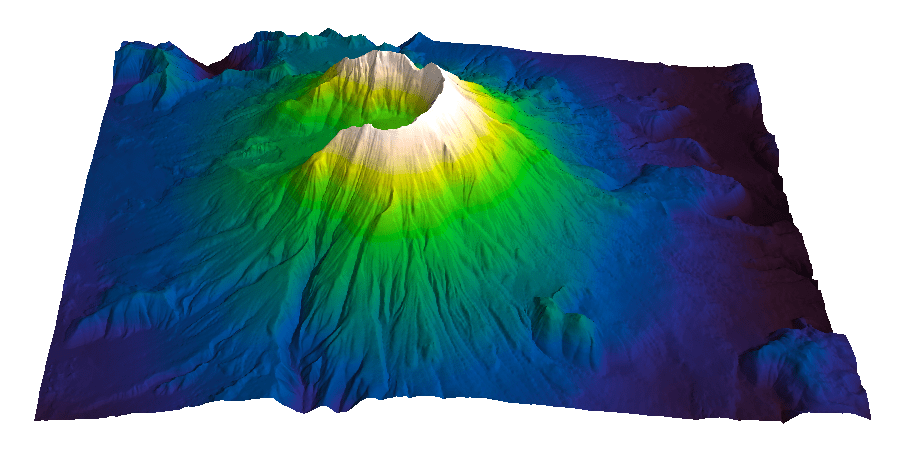
Evan Bianco of Agile Geoscience wrote a wonderful post on how to use python to import, manipulate, and display digital elevation data for Mt St Helens before and after the infamous 1980 eruption. He also calculated the difference between the two surfaces to calculate the volume that was lost because of the eruption to further showcase Python’s capabilities. I encourage readers to go through the extended version of the exercise by downloading his iPython Notebook and the two data files here and here.

I particularly like Evan’s final visualization (consisting of stacked before eruption, difference, and after eruption surfaces) which he created in Mayavi, a 3D data visualization module for Python. So much so that I am going to piggy back on his work, and show how to import a custom palette in Mayavi, and use it to color one of the surfaces.

Python Code

This first code block imports the linear Lightness palette. Please refer to my last post for instructions on where to download the file from.

import numpy as np
# load 256 RGB triplets in 0-1 range:
LinL = np.loadtxt('Linear_L_0-1.txt') 
# create r, g, and b 1D arrays:
r=LinL[:,0] 
g=LinL[:,1]
b=LinL[:,2]
# create R,G,B, and ALPHA 256*4 array in 0-255 range:
r255=np.array([floor(255*x) for x in r],dtype=np.int) 
g255=np.array([floor(255*x) for x in g],dtype=np.int)
b255=np.array([floor(255*x) for x in b],dtype=np.int)
a255=np.ones((256), dtype=np.int); a255 *= 255;
RGBA255=zip(r255,g255,b255,a255)

This code block imports the palette into Mayavi and uses it to color the Mt St Helens after the eruption surface. You will need to have run part of Evan’s code to get the data.

from mayavi import mlab
# create a figure with white background
mlab.figure(bgcolor=(1, 1, 1))
# create surface and passes it to variable surf
surf=mlab.surf(after, warp_scale=0.2)
# import palette
surf.module_manager.scalar_lut_manager.lut.table = RGBA255
# push updates to the figure
mlab.draw()
mlab.show()

After_Linear_L

Reference

Mayavi custom colormap example


Related Posts (MyCarta)

The rainbow is dead…long live the rainbow! – Part 5 – CIE Lab linear L* rainbow

Convert color palettes to Python Matplotlib colormaps

Related Posts (external)

How much rock was erupted from Mt St Helens

Convert color palettes to python matplotlib colormaps

This is a quick post to show you how to import my perceptual color palettes – or any other color palette – into Python and convert them into Matplotlib colormaps. We will use as an example the CIE Lab linear L* palette, which was my adaptation to Matlab of the luminance controlled colormap by Kindlmann et al.

Introduction

You can use the code snippets in here or download the iPython notebook from here (*** please see update ***). You will need NumPy in addition to Matplotlib.

***  UPDATE  ***

Fellow Pythonista Matt Hall of Agile Geoscience extended this work – see comment below to include more flexible import of the data and formatting routines, and code to reverse the colormap. Please use Matt’s expanded iPython notebook.

Preliminaries

First of all, get the color palettes in plain ASCII format rom this page. Download the .odt file for the RGB range 0-1 colors, change the file extension to .zip, and unzip it. Next, open the file Linear_L_0-1, which contains comma separated values, replace commas with tabs, and save as .txt file. That’s it, the rest is in Python.

Code snippets – importing data

Let’s bring in numpy and matplotlib:

%pylab inline
import numpy as np
%matplotlib inline
import matplotlib.pyplot as plt

Now we load the data. We get RGB triplets from tabs delimited text file. Values are expected in the 0-1 range, not 0-255 range.

LinL = np.loadtxt('Linear_L_0-1.txt')

A quick QC of the data:

LinL[:3]

gives us:

array
([[ 0.0143,  0.0143,  0.0143],
  [ 0.0404,  0.0125,  0.0325],
  [ 0.0516,  0.0154,  0.0443]])

looking good!

Code snippets – creating colormap

Now we want to go from an array of values for blue in this format:

b1=[0.0000,0.1670,0.3330,0.5000,0.6670,0.8330,1.0000]

to a list that has this format:

[(0.0000,1.0000,1.0000),
(0.1670,1.0000,1.0000),
(0.3330,1.0000,1.0000),
(0.5000,0.0000,0.0000),
(0.6670,0.0000,0.0000),
(0.8330,0.0000,0.0000),
(1.0000,0.0000,0.0000)]

# to a dictionary entry that has this format:

{
'blue': [
(0.0000,1.0000,1.0000),
(0.1670,1.0000,1.0000),
(0.3330,1.0000,1.0000),
(0.5000,0.0000,0.0000),
(0.6670,0.0000,0.0000),
(0.8330,0.0000,0.0000),
(1.0000,0.0000,0.0000)],
...
...
}

which is the format required to make the colormap using matplotlib.colors. Here’s the code:

b3=LinL[:,2] # value of blue at sample n
b2=LinL[:,2] # value of blue at sample n
b1=linspace(0,1,len(b2)) # position of sample n - ranges from 0 to 1

# setting up columns for list
g3=LinL[:,1]
g2=LinL[:,1]
g1=linspace(0,1,len(g2))

r3=LinL[:,0]
r2=LinL[:,0]
r1=linspace(0,1,len(r2))

# creating list
R=zip(r1,r2,r3)
G=zip(g1,g2,g3)
B=zip(b1,b2,b3)

# transposing list
RGB=zip(R,G,B)
rgb=zip(*RGB)
# print rgb

# creating dictionary
k=['red', 'green', 'blue']
LinearL=dict(zip(k,rgb)) # makes a dictionary from 2 lists

Code snippets – testing colormap

That’s it, with the next 3 lines we are done:

my_cmap = matplotlib.colors.LinearSegmentedColormap('my_colormap',LinearL)
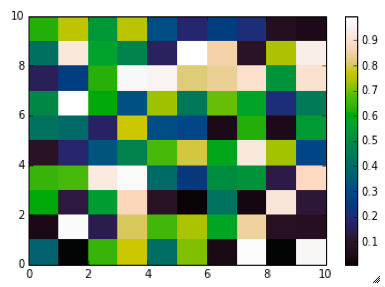
pcolor(rand(10,10),cmap=my_cmap)
colorbar()

which gives you this result: LinearL test Notice that if the original file hadn’t had 256 samples, and you wanted a 256 sample color palette, you’d use the line below instead:

my_cmap = matplotlib.colors.LinearSegmentedColormap('my_colormap',LinearL,256)

Have fun!

Related Posts (MyCarta)

The rainbow is dead…long live the rainbow! – Part 5 – CIE Lab linear L* rainbow

Visualize Mt S Helens with Python and a custom color palette

A bunch of links on colors in Python

http://bl.ocks.org/mbostock/5577023

http://matplotlib.org/api/cm_api.html

http://matplotlib.org/api/colors_api.html

http://matplotlib.org/examples/color/colormaps_reference.html

http://matplotlib.org/api/colors_api.html#matplotlib.colors.ListedColormap

http://wiki.scipy.org/Cookbook/Matplotlib/Show_colormaps

http://stackoverflow.com/questions/21094288/convert-list-of-rgb-codes-to-matplotlib-colormap

http://stackoverflow.com/questions/16834861/create-own-colormap-using-matplotlib-and-plot-color-scale

http://stackoverflow.com/questions/11647261/create-a-colormap-with-white-centered-around-zero