Computer vision in geoscience: recover seismic data from images – part 2

In part 1 of this short series I demonstrated how to detect the portion occupied by the seismic section in an image (Figure 1).

Figure 1

The result was a single binary image with the white object representing the pixels occupied by the seismic section (Figure 2).

Figure 2

You can download from GitHub all the tools for the automated workflow (including both part 1 and part 2, and some of the optional features outlined in the introduction) in the module mycarta.py, as well as an example Jupyter Notebook showing how to run it.

Next I want to use this binary object to derive a transformation function to rectify to a rectangle the seismic section in the input image.

The first step is to detect the contour of the object. Notice that because we used morphological operations it is not a perfect quadrilateral: it has rounded corners and some of the sides are bent, therefore the second step will be to approximate the contour with a polygon with enough tolerance to ensure it has 4 sides only(this took some trial and error but 25 turned out to be a good value for the parameter for a whole lot of test images I tried).

In reality, the two steps are performed together using the functions find_contours (there is only one to find, reallyand approximate_polygon from the skimage.measure module, as below:

contour = np.squeeze(find_contours(enhanced, 0))
coords = approximate_polygon(contour, tolerance=25)

The variable coords contains the coordinate for the corner points of the polygon (the first point is repeated last to close the polygon), which in Figure 3 I plotted superimposed to the input binary object.

Figure 3 – approximated polygon

A problem with the output of  approximate_polygon is that the points are not ordered; to solve it I adapted a function from a Stack Overflow answer to sort them based on the angle from their centroid:

def ordered(points):
  x = points[:,0]
  y = points[:,1]
  cx = np.mean(x)
  cy = np.mean(y)
  a = np.arctan2(y - cy, x - cx)
  order = a.ravel().argsort()
  x = x[order]
  y = y[order]
  return np.vstack([x,y])

I call the function as below to get the corners in the contour without the last one (repetition of the first point).

sortedCoords = ordered(coords[:-1]).T

I can then plot them using colors in a predefined order to convince myself the indeed are sorted:

plt.scatter(sortedCoords[:, 1], sortedCoords[:, 0], s=60, 
 color=['magenta', 'cyan', 'orange', 'green'])

Figure 4 – corners sorted in counter-clockwise order

The next bit of code may seem a bit complicated but it is not. With coordinates of the corners known, and their order as well, I can calculate the largest width and height of the input seismic section, and I use them to define the size of the registered output section, which is to be of rectangular shape:

w1 = np.sqrt(((sortedCoords[0, 1]-sortedCoords[3, 1])**2)
  +((sortedCoords[0, 0]-sortedCoords[3, 0])**2))
w2 = np.sqrt(((sortedCoords[1, 1]-sortedCoords[2, 1])**2)
  +((sortedCoords[1, 0]-sortedCoords[2, 0])**2))

h1 = np.sqrt(((sortedCoords[0, 1]-sortedCoords[1, 1])**2)
  +((sortedCoords[0, 0]-sortedCoords[1, 0])**2))
h2 = np.sqrt(((sortedCoords[3, 1]-sortedCoords[2, 1])**2)
  +((sortedCoords[3, 0]-sortedCoords[2, 0])**2))

w = max(int(w1), int(w2))
h = max(int(h1), int(h2))

and with those I define the coordinates of the output corners used to derive the transformation function:

dst = np.array([
  [0, 0],
  [h-1, 0],
  [h-1, w-1],
  [0, w-1]], dtype = 'float32')

Now I have everything I need to rectify the seismic section in the input image: it is warped using homologous points (the to sets of four corners) and a transformation function.

dst[:,[0,1]] = dst[:,[1,0]]
sortedCoords[:,[0,1]] = sortedCoords[:,[1,0]]
tform = skimage.transform.ProjectiveTransform()
tform.estimate(dst,sortedCoords)
warped =skimage.transform.warp(img, tform, output_shape=(h-1, w-1))

Notice that I had to swap the x and y coordinates to calculate the transformation function. The result is shown in Figure 5: et voilà!

Figure 5 – rectified seismic section

You can download from GitHub the code to try this yourself (both part 1 and part 2, and some of the optional features outlined in the introduction, like removing the rectangle with label inside the section) as well as an example Jupyter Notebook showing how to run it.

Computer vision in geoscience: recover seismic data from images – part 1

As anticipated in the introductory post of this short series I am going to demonstrate how to automatically detect where a seismic section is located in an image (be it a picture taken from your wall, or a screen capture from a research paper), rectify any distortions that might be present, and remove all sorts of annotations and trivia around and inside the section.

You can download from GitHub all the tools for the automated workflow (including both part 1 and part 2, and some of the optional features outlined in the introduction) in the module mycarta.py, as well as an example Jupyter Notebook showing how to run it.

In this part one I will be focusing on the image preparation and enhancement, and the automatic detection of the seismic section (all done using functions from numpy, scipy, and scikit-image)In order to do that, first I convert the input image  (Figure 1) containing the seismic section to grayscale and then enhance it by increasing the image contrast (Figure 2).

Figure 1 – input image


Figure 2 – grayscale image

All it takes to do that is three lines of code as follows:

gry = skimage.color.rgb2gray(img);
p2, p95 = numpy.percentile(gry, (2, 95))
rescale = exposure.rescale_intensity(gry, in_range=(p2, p95))

For a good visual intuition of what actually is happening during the contrast stretching, check my post sketch2model – sketch image enhancements: in there  I show intensity profiles taken across the same image before and after the process.

Finding the seismic section in this image involve four steps:

  1. converting the grayscale image to binary with a threshold (in this example a global threshold with the Otsu method)
  2. finding and retaining only the largest object in the binary image (heuristically assumed to be the seismic section)
  3. filling its holes
  4. applying morphological operations to remove minutiae (tick marks and labels)

Below I list the code, and show the results.

global_thresh = threshold_otsu(rescale)
binary_global = rescale < global_thresh

Figure 3 – binary image

# (i) label all white objects (the ones in the binary image).
# scipy.ndimage.label actually labels 0s (the background) as 0 and then
# every non-connected, nonzero object as 1, 2, ... n.
label_objects, nb_labels = scipy.ndimage.label(binary_global)

# (ii) calculate every labeled object's binary size (including that 
# of the background)
sizes = numpyp.bincount(label_objects.ravel())

# (3) set the size of the background to 0 so that if it happened to be 
# larger than the largest white object it would not matter
sizes[0] = 0

# (4) keep only the largest object
binary_objects = remove_small_objects(binary_global, max(sizes))

Figure 4 – isolated seismic section

# Remove holes (black regions inside white object)
binary_holes = scipy.ndimage.morphology.binary_fill_holes(binary_objects)

Figure 5 – holes removed

enhanced = opening(binary_holes, disk(7))

Figure 6 – removed residual tick marks and labels

That’s it!!!

You can download from GitHub all the tools for the automated workflow (including both part 1 and part 2, and some of the optional features outlined in the introduction) in the module mycarta.py, as well as an example Jupyter Notebook showing how to run it.

In the next post, we will use this polygonal binary object both as a basis to capture the actual coloured seismic section from the input image and to derive a transformation to rectify it to a rectangle.

Geophysical tutorial – How to evaluate and compare colormaps in Python

These below are two copies of a seismic horizon from the open source Penobscot 3D seismic survey  coloured using two different colormaps (data from Hall, 2014).

Figure 1

Do you think either of them is ‘better’?  If yes, can you explain why? If you are unsure and you want to learn how to answer such questions using perceptual principles and open source Python code, you can read my tutorial Evaluate and compare colormaps (Niccoli, 2014), one of the awesome Geophysical Tutorials from The Leading Edge. In the process you will learn many things, including how to calculate an RGB colormap’s intensity using a simple formula:

import numpy as np
ntnst = 0.2989 * rgb[:,0] + 0.5870 * rgb[:,1] + 0.1140 * rgb[:,2] # get the intensity
intensity = np.rint(ntnst) # rounds up to nearest integer

…and  how to display  the colormap as a colorbar with an overlay plot of the intensity as in Figure 2.

Figure 2


Reference

Hall, M. (2014) Smoothing surfaces and attributes. The Leading Edge 33, no. 2, 128–129. Open access at: https://github.com/seg/tutorials#february-2014

Niccoli, M. (2014) Evaluate and compare colormaps. The Leading Edge 33, no. 8.,  910–912. Open access at: https://github.com/seg/tutorials#august-2014

Visualize Mt St Helen with Python and a custom color palette

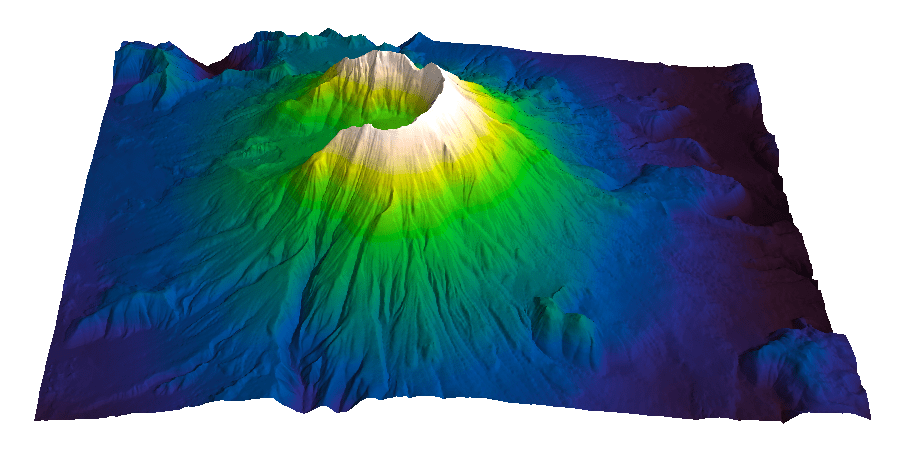
Evan Bianco of Agile Geoscience wrote a wonderful post on how to use python to import, manipulate, and display digital elevation data for Mt St Helens before and after the infamous 1980 eruption. He also calculated the difference between the two surfaces to calculate the volume that was lost because of the eruption to further showcase Python’s capabilities. I encourage readers to go through the extended version of the exercise by downloading his iPython Notebook and the two data files here and here.

I particularly like Evan’s final visualization (consisting of stacked before eruption, difference, and after eruption surfaces) which he created in Mayavi, a 3D data visualization module for Python. So much so that I am going to piggy back on his work, and show how to import a custom palette in Mayavi, and use it to color one of the surfaces.

Python Code

This first code block imports the linear Lightness palette. Please refer to my last post for instructions on where to download the file from.

import numpy as np
# load 256 RGB triplets in 0-1 range:
LinL = np.loadtxt('Linear_L_0-1.txt') 
# create r, g, and b 1D arrays:
r=LinL[:,0] 
g=LinL[:,1]
b=LinL[:,2]
# create R,G,B, and ALPHA 256*4 array in 0-255 range:
r255=np.array([floor(255*x) for x in r],dtype=np.int) 
g255=np.array([floor(255*x) for x in g],dtype=np.int)
b255=np.array([floor(255*x) for x in b],dtype=np.int)
a255=np.ones((256), dtype=np.int); a255 *= 255;
RGBA255=zip(r255,g255,b255,a255)

This code block imports the palette into Mayavi and uses it to color the Mt St Helens after the eruption surface. You will need to have run part of Evan’s code to get the data.

from mayavi import mlab
# create a figure with white background
mlab.figure(bgcolor=(1, 1, 1))
# create surface and passes it to variable surf
surf=mlab.surf(after, warp_scale=0.2)
# import palette
surf.module_manager.scalar_lut_manager.lut.table = RGBA255
# push updates to the figure
mlab.draw()
mlab.show()

Reference

Mayavi custom colormap example


Related Posts (MyCarta)

The rainbow is dead…long live the rainbow! – Part 5 – CIE Lab linear L* rainbow

Convert color palettes to Python Matplotlib colormaps

Related Posts (external)

How much rock was erupted from Mt St Helens